How to find a file on your computer by describing it
The short answer
Built-in search matches words that are really in the file or its name. To find a file you can only describe, like “the lease we signed in March”, turn the description into words the file probably contains, add its kind and rough date, or use a search app that matches meaning as well as exact words.
Turn the description into search words
- Pick the most unusual word that must be in it: a name, a street, an amount, an invoice number.
- Try the other words it might use: “sofa” for couch, “agreement” for contract.
- Add what kind of file it is and roughly when you used it.
On a Mac
- Press ⌘ Space and type the words, for example
kind:pdf lease Elm. - For more control, press ⌘ F in Finder and add rules such as Kind is PDF and Last opened date.
On Windows
- Open File Explorer, click This PC and type
content:lease kind:document. - Add a date, such as
datemodified:last month, to narrow it down.
Nothing shows up? See how to fix Windows Search.
Describe it in plain words
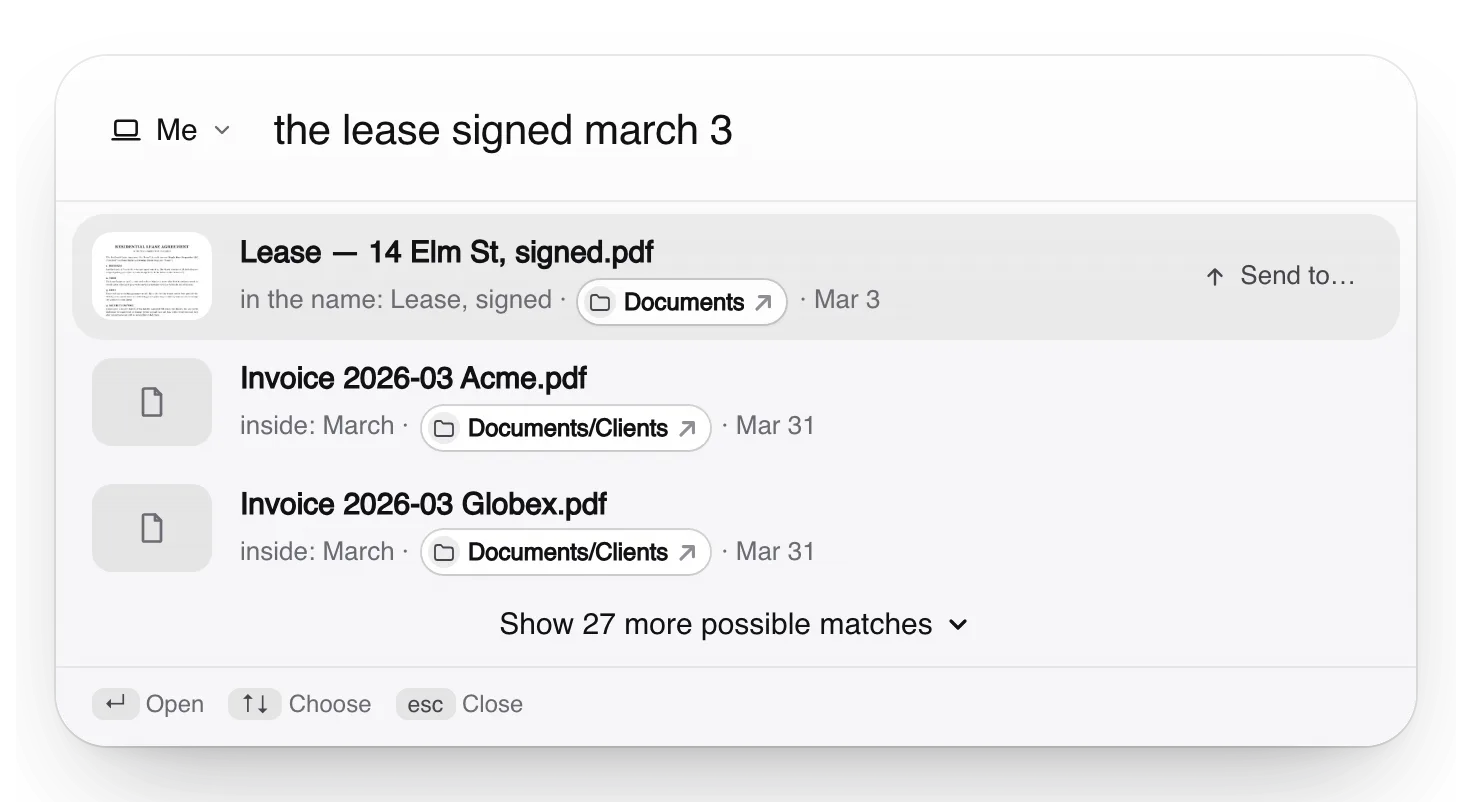
In Truffle you type the description itself: “the lease signed march 3”, “the receipt for the navy sofa”. It matches meaning as well as exact words, reads the words in photos and screenshots, and shows why each file matched, so you can tell at a glance whether it is the one.
Requests that do something, like finding all the photos from a trip and sending them to someone, work in English and Vietnamese for now.
Free. Your files are searched on your own computer, not uploaded to us.
Apple, Mac, macOS, Finder and Spotlight are trademarks of Apple Inc., registered in the U.S. and other countries and regions. Windows and File Explorer are trademarks of the Microsoft group of companies. PageDuo is not affiliated with, endorsed or sponsored by Apple or Microsoft.